
How to Reverse Engineer React Native Android Apps


.svg)
In the previous blog of the React Native Pentesting for Android Security Masterclass, we understood what React Native is and why it is important. The bridge concept taught us how it provides a way of communication between two completely different technologies: JavaScript and Native.
Now it’s time to learn how to reverse engineer react native apps.

Method 1: Using APKTool:
This method will convert files such as “AndroidManifest.xml”, “classes.dex” etc files into human-readable format unlike Method 2.
Steps:
1.Install APKTOOL: https://ibotpeaches.github.io/Apktool/
2. Open cmd and type: apktool d app.apk
3. The application will be decompiled.
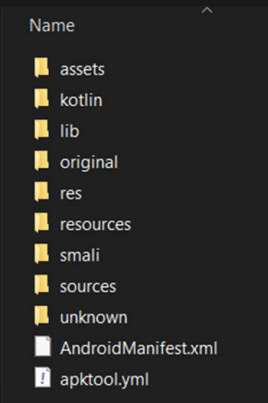
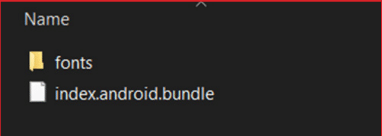
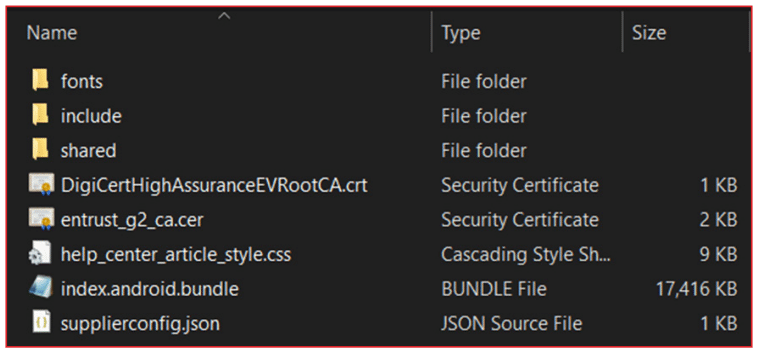
4. Goto “/assets/” folder. It should contain the “index.android.bundle” file.
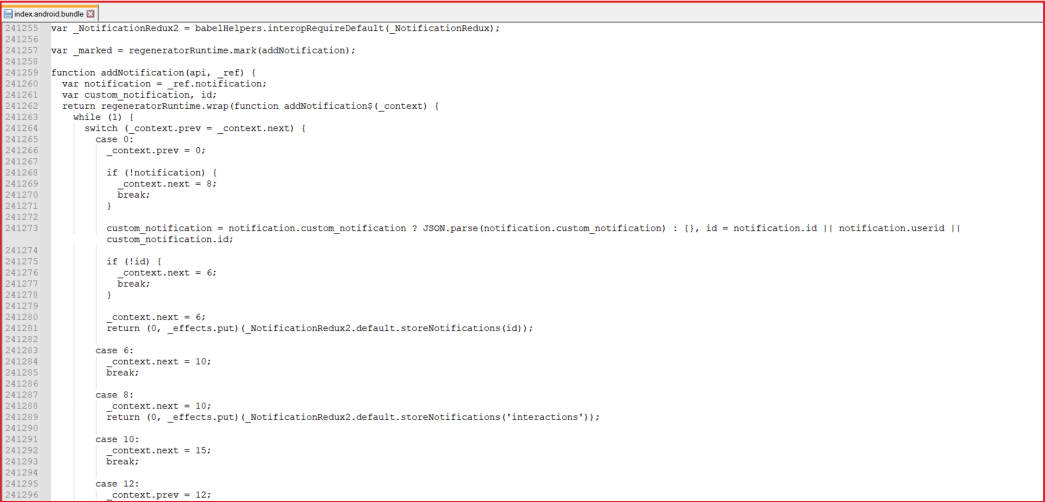
5. If you open this file, you will find all React Native JS code in minified format.
Method 2: Using any compression tool
If you want to decompile applications directly without needing any tools, Method 2 is all you need.
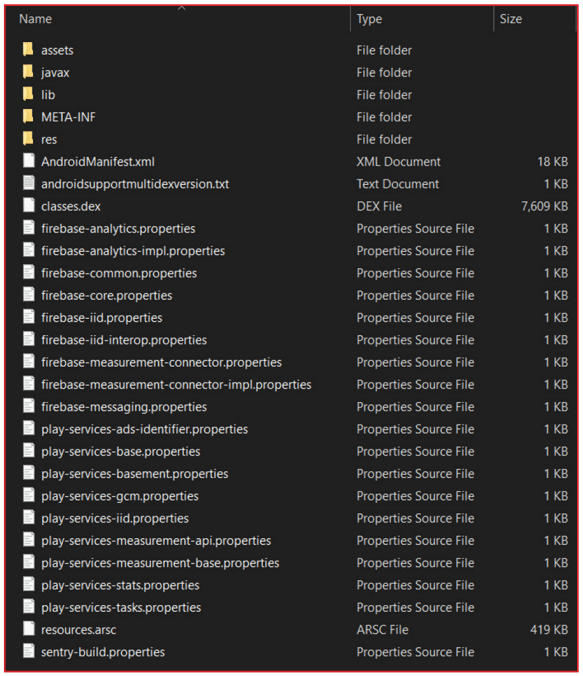
1. Rename the extension of the APK file to .zip
2. Now open this file with any compression management tool such as Winzip, 7zip
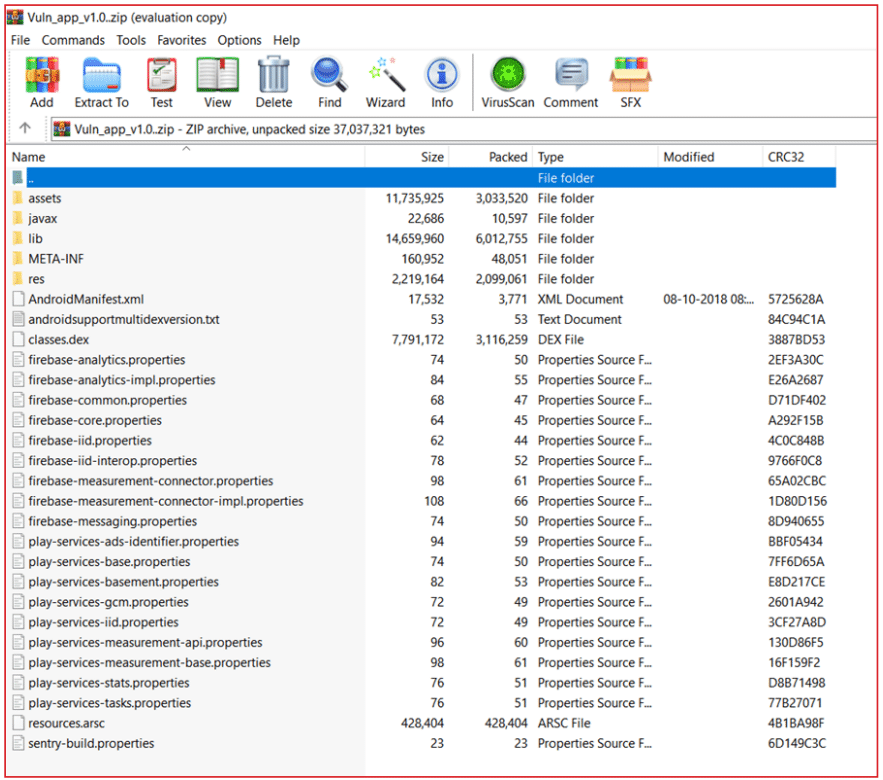
3. Extract all the files in that zip, and you will be able to access them. Some of the files will not be in a human-readable format.
How to find out if the application is built on React Native?
A. Check the presence of the “index.android.bundle” file
- Follow the steps mentioned above to decompile the application.
- Check if the “/assets/index.android.bundle” file is present among the extracted folders. This confirms the application is built in React NativeReact Native.
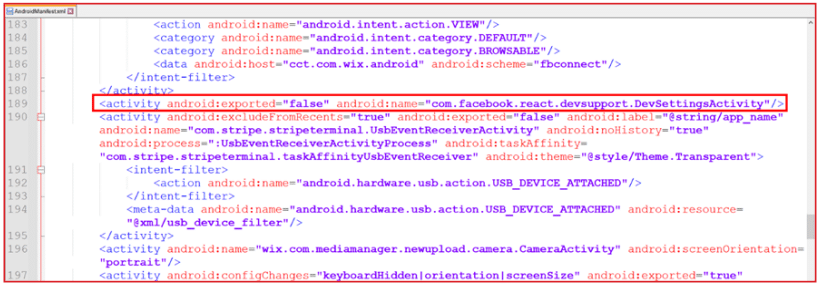
B. Check the “com.facebook.react” string in “AndroidManifest.xml” file
- Decompile the application using the APKtool as mentioned above.
- Open “AndroidManifest.xml” file and search for “com.facebook.react” string.
React Native apk file structure:
Let’s sneak into a release build of a sample React Native android application.
Once decompiled, the basic React Native android application consists of the following contents:
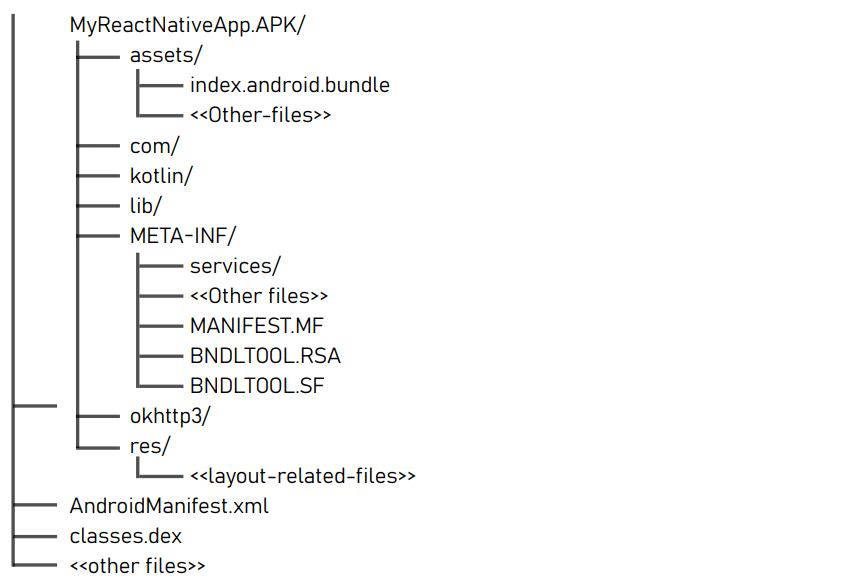
Note: This hierarchy contains many files and directories. However, the above diagram shows only important files and directories.
Let’s understand some of the critical files and directories:
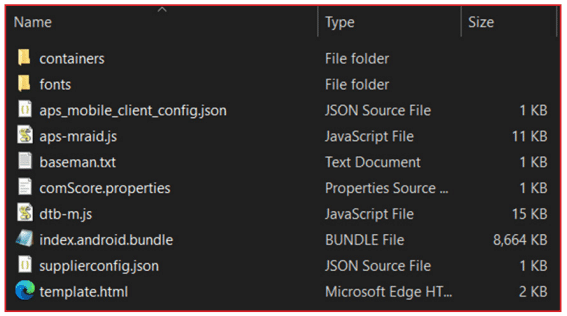
- assets/
- The “assets/” folder is the important directory to look for while reversing the React Native applications. It contains assets such as fonts, .json files, .properties files, extended JavaScript files along with “index.android.bundle” file.
- index.android.bundle: This file is the heart and soul of the React Native applications as it contains the entire core logic of the application. It’s a JavaScript bundle file and all of the application’s JavaScript+JSX code is compiled into this file in minified format. We will learn more about this file in upcoming sections.
- The “assets/” folder is the important directory to look for while reversing the React Native applications. It contains assets such as fonts, .json files, .properties files, extended JavaScript files along with “index.android.bundle” file.
- kotlin/
- Contains kotlin code files. These files contain data for declarations of standard (“built-in”) Kotlin classes, which are not compiled to .class files but rather are mapped to the existing types on the platform (in this case, JVM). For example, kotlin/kotlin.kotlin_builtins contains the information for non-physical classes in package kotlin: Int, String, Enum, Annotation, Collection, etc.
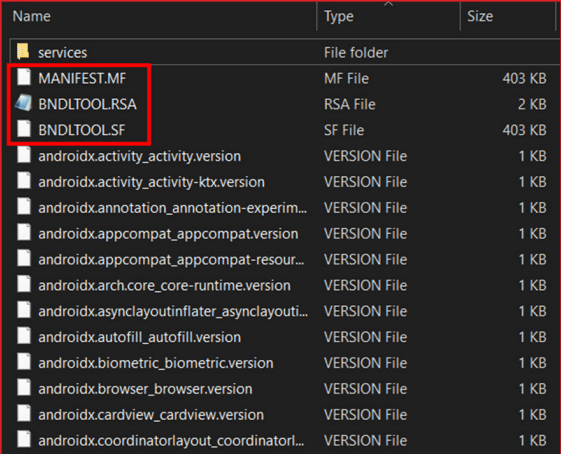
- META-INF/
- This directory is also important when reversing React Native applications. The META-INF folder contains the manifest information and other metadata about the Java package carried by the jar file.
- This means it also contains application signing-related files, such as those mentioned below. We will return to this folder in the pentesting part of the article.
- MANIFEST.MF
- It contains various information used by the Java run-time environment when loading the jar file, such as the main class to be run from the jar file, the version of the package, build number, creator of the package, security policies/permissions of Java applets and Java web start packages, the list of file names in the jar along with their SHA1 digests, etc.
- BNDLTOOL.RSA
- This contains the list of all files along with their SHA-1 digest.
- BNDLTOOL.SF
- This contains the signed contents of the CERT.SF file and the certificate chain of the public key used for signing the contents.
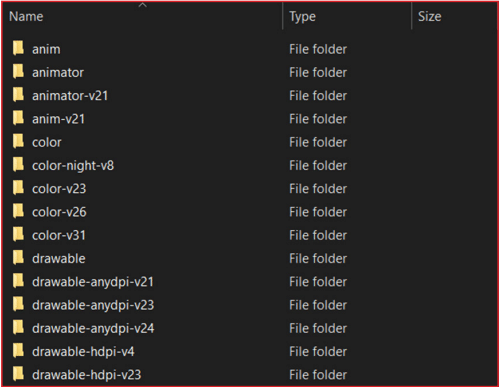
- res/
- Contains all non-code resources, such as XML layouts, UI strings, and bitmap images, divided into corresponding sub-directories.
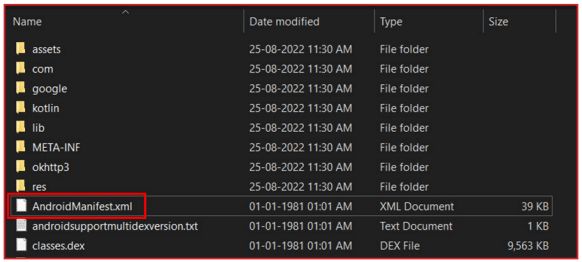
- AndroidManifest.xml
- AndroidManifest.xml is one of the most important files in any Android application. If you know even a little bit about Android app pen testing, you may know the importance of this file. The AndroidManifest.xml file contains information about your package, including application components such as activities, services, broadcast receivers, content providers, etc.
- Gradle automatically generates this file while developing and compiling React Native applications. Therefore, some of the configurations in this file are vulnerable by default. We will check this file out later in the pentesting part.
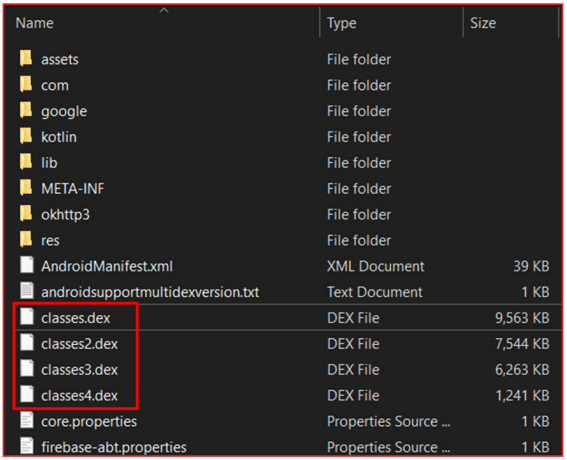
- classes.dex
- Even if the React Native applications are written in JavaScript, when they are translated into an Android application, Java bytecode code is generated automatically to run the application using ART. This file contains the Dalvik bytecode of this Java bytecode.
- You may find multiple classes.dex files in the APK because of the limitation of dex size (65K) for a single dex file. Mulidexing is used in this situation, and that’s why you will find multiple dex files in the APK.
Conclusion
In this blog, we explored the process of reverse engineering React Native applications, diving into both methods for decompiling APK files and analyzing their structure. Understanding how to decompile and inspect React Native apps is crucial for various purposes, including security assessments, debugging, and learning from existing implementations.
In our next blog of the Masterclass, we will explore specific analysis techniques and security considerations related to React Native applications, further enhancing our ability to assess and safeguard these increasingly popular mobile apps effectively.


Talk to a security researcher
This is the default text value


