
Attack Surfaces Static Analysis in React Native Applications


.svg)
The React Native Pentesting for Android Security Masterclass has taught us how to reverse engineer react native applications by now, so we’ll explore both methods for decompiling APK files and analyzing their structure.
In React Native applications, the “index.android.bundle” file plays a crucial role. It contains all the app’s compiled JavaScript code in a single minified file. This file is generated when the application is built and includes everything from the main components to the various libraries and dependencies used in the app.
As a result, this file can become a significant security concern because it may contain sensitive hardcoded information such as credentials, API keys, or URLs that attackers can easily extract if they decompile the app. Understanding what kind of sensitive information can be stored in this file and how to analyze it is essential for securing React Native apps.
Sensitive information in the “index.android.bundle” file
What is the “index.android.bundle” file?
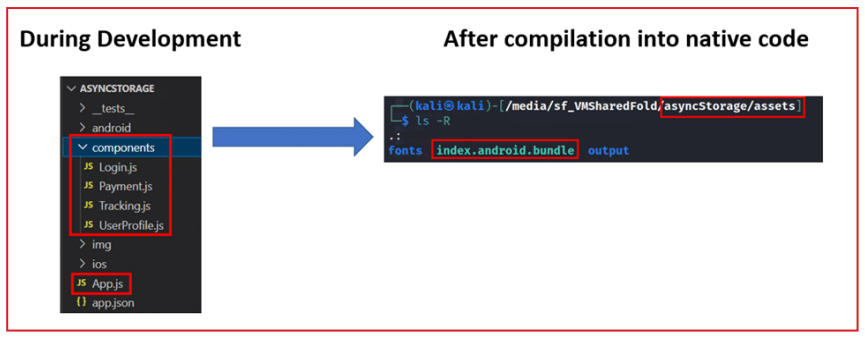
- In React Native, App.js acts like Main.java. When React Native apps are compiled into an APK file, the React Native index files and components are converted into JS code via a JS bridge.
- In React Native applications, all of the Javascript code written in the project gets compiled into the “index.android.bundle” file when the application is built. Thus, this file contains the application’s Javascript code in minified format.
- When you decompile the React Native apk, the contents of the main ‘App.js’ file and all other components will be bundled in JS format in the “index.android.bundle” file mentioned above. This means the “index.android.bundle” file contains all of the source code of the React Native application. We can search for hardcoded stuff in this file.
Steps:
- Decompile application using APKtool.
- Locate “index.android.bundle” file in /assets folder.
/<appfolder>/assets/
There is a lot of sensitive information that might be hardcoded in the application component files, which are later compiled into the “index.android.bundle” file. We will look at some of the information that we can find in this file.
1. Hardcoded credentials and tokens:
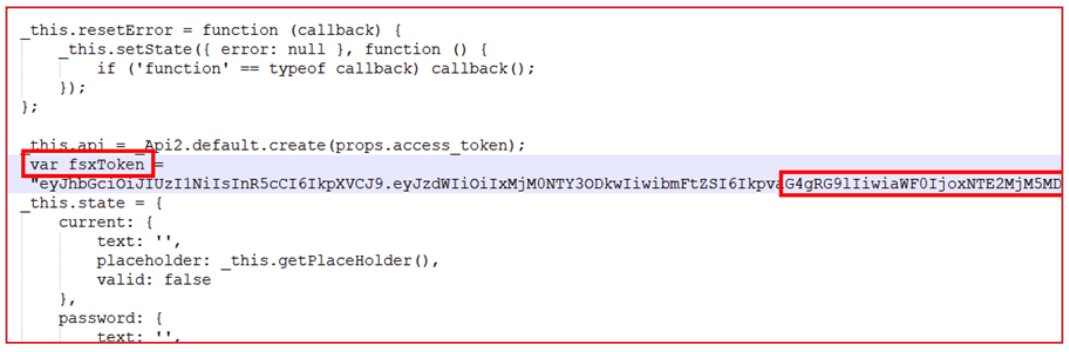
Poor management of credentials and tokens is a naïve mistake in many Android applications, and the React Native application is no exception. In fact, hardcoding is much higher in React Native than in regular native Java apps, and “index.android.bundle” is a goldmine for hardcoding.
You can search for keywords such as “secrets, tokens, password, apikey, username, login” etc. to find such goofy hidden secrets in the “index.android.bundle” file.
2. Third-party database credentials:
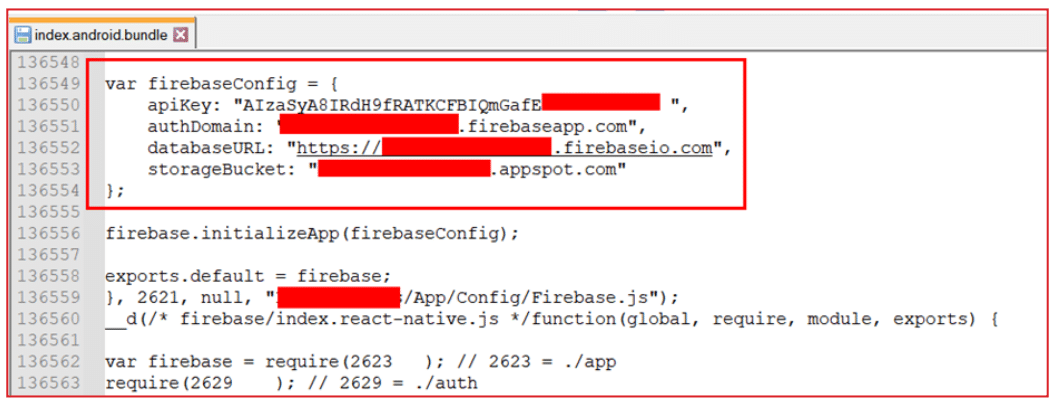
Most React Native applications store information in third-party databases such as Firebase. Numerous instances of hardcoded credentials for these third-party databases have occurred, and many credentials are too permissive within the React Native application.
The following keywords can be used to grab these credentials within the target React Native application:
3. Hidden backdoors and URLs
Developers tend to add backdoors or URLs in the code for various purposes, such as debugging, shortcuts to the functionality for convenience, etc. Sometimes, they forget to remove those URLs and shortcuts while deploying the code to production. We can scratch through the file to find these hidden URLs and shortcuts.
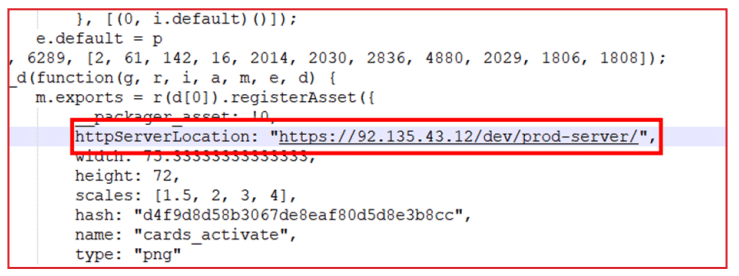
The “index.android.bundle” file contains the application’s core code, which can sometimes be huge to analyze. Depending on the type of application, technology, frameworks used in the application, etc., we can be more creative with custom keywords.
Splitting “index.android.bundle” code into multiple JS components
As we saw above, all JS code is crunched into one “index.android.bundle” file. Navigating through this bulk code is a headache. Fortunately, there is a way to break down this bundle code into multiple JS files with the help of the following npm module.
Steps:
1. Install the “react-native-decompiler” module. The installation instructions are in the module URL above.
2. Unzip the contents of the vulnerable application into a folder and go to the “assets” folder.
3. Now open the command prompt in “assets” folder and type the following command:
npx react-native-decompiler -i ./index.android.bundle -o ./output
4. Wait for the process to complete. The “index.android.bundle” file will be decompiled into multiple JS modules in the “output” folder.

5. Unfortunately, unlike React JS web applications, most React Native Android applications do not generate a source map file. Thus, we have to manually navigate through various application components.
Navigating through multiple decompiled JS modules:
You got decompiled JS files, but things are still messy. Let’s simplify things. We will navigate through these files to reach the right code.
1. Once you decompile the “index.android.bundle” file, you will see multiple .js files in the “output” folder. We can start with the “0.js” file. Consider this file as the main component file of the application. (App.js)

2. Open this file and check which files are imported at the beginning of the file. It should look like the following:

or in case of multiple imported components:
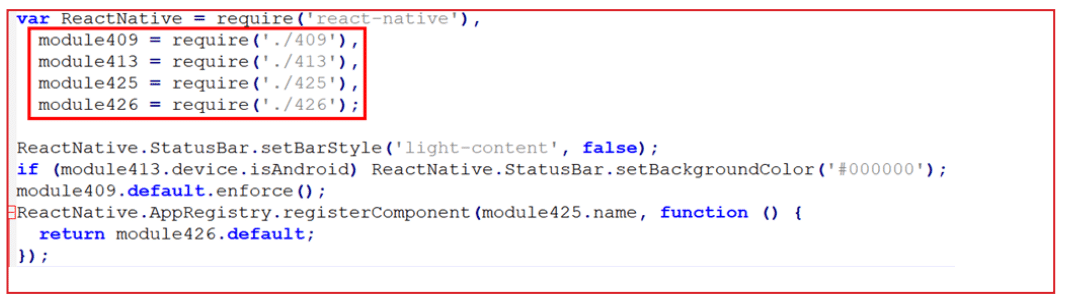
3. We can spot these files from the list of multiple js files.

4. Open this file, and you will see the bundled JS code (bundled via webpack).
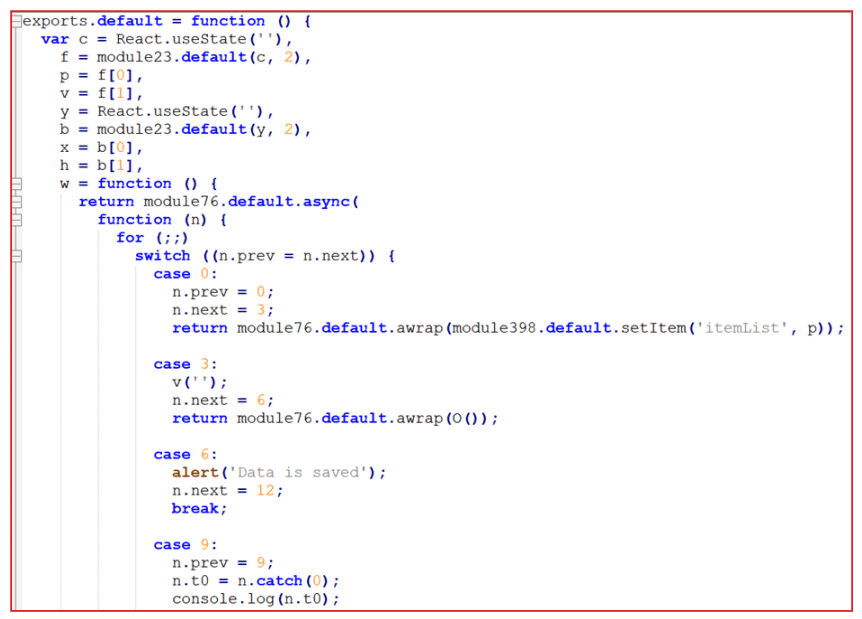
5. We will try to make more sense of this stuff in the dynamic exploitation section.
Decompiling Hermes bytecode
As we saw above, the “index.android.bundle” file contains the core logic of the entire application. Thus, the React Native team created their own JavaScript engine called Hermes. This engine runs React Native applications. The JS source code is often compiled into the Hermes bytecode, somewhat obstructing the JS code.
What is Hermes?
Hermes is an open-source JavaScript engine optimized for React Native. For many apps, enabling Hermes will result in improved start-up time, decreased memory usage, and smaller app size. Refer: https://reactnative.dev/docs/hermes
Thus, when you decompile the React Native application that used Hermes during compilation, the code in the file “index.android.bundle” will be converted into Hermes byte. The contents of the file will look like this:

Fortunately, there is a way to convert this mess into a human-readable format. Shoutout to *https://github.com/bongtrop* for creating hbctool. This tool lets us disassemble the encrypted bundle files back to the Hermes instruction set, which is in human-readable bytecode.
Pre-requisite:
hbctool: https://github.com/bongtrop/hbctool
Challenge APK: https://github.com/ErbaZZ/hermes-reversing-lab/blob/main/HermesReversingLab.apk
Steps:
1. Decompile APK and go to the “/assets” folder.
2. There you will find the “index.android.bundle” file.
3. Install the hbctool with the following command
pip install hbctool
4. Open the command terminal in the “/assets” folder and type the following command to disassemble Hermes bytecode into human-readable format.
hbctool disasm <index.android.bundle> <output_folder_name>
5. A folder will be created containing disassembled Hermes bytecode. Now go to the output folder (dis_code)
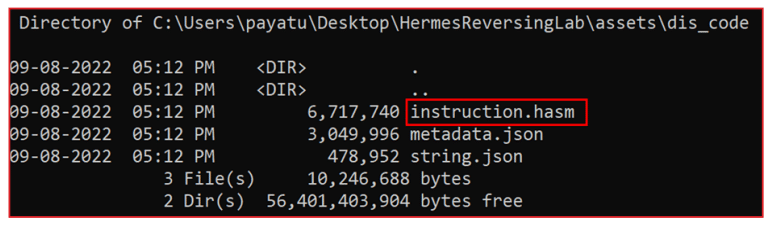
- metadata.json: stores the important information of Hermes bytecode file
- instruction.hasm: stores the application instructions or logic in HASM format (edit application logic in this file)
- string.json: store the application strings or texts (edit strings in this file)
6. Open the “instructions.hasm” file and analyze instructions sets.
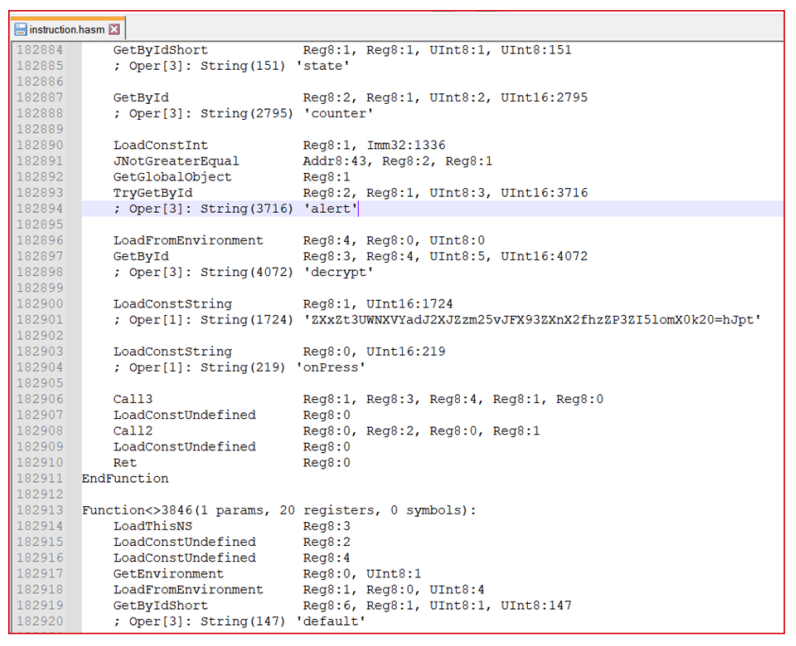
7. You can find secrets stored in String constants by searching for specific keywords such as password, tokens, secret, apikey, etc.
8. You can use keyword: Oper[1]: String( to grep all of the strings in the bytecode.
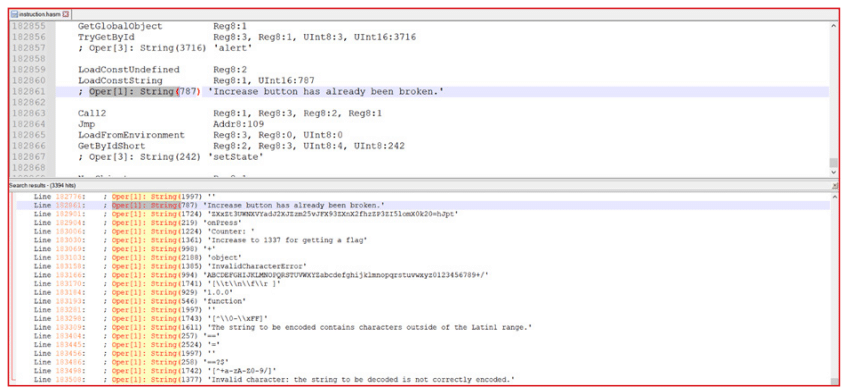
Hermes is a custom JavaScript engine created by Facebook. Therefore, the only way to understand this bytecode is to analyze the code patterns.
Grabbing files stored using AsyncStorage
What is AsyncStorage in React Native?
According to the official React native document,
AsyncStorage is an unencrypted, asynchronous, persistent, key-value storage system that is global to the app. It should be used instead of LocalStorage.
AsyncStorage is also asynchronous, i.e. its methods run concurrently with your code It is also persistent, meaning that the stored data will always be available globally even if you log out or restart the application.
When does it become a concern?
The data stored via AsyncStorage is unencrypted; thus, it is accessible to anyone with access to the device who can get it in cleartext. If the application stores any credentials of services, user’s session token, passwords, or any other sensitive information via AsyncStorage, then it is easy for an attacker with access to the device to access this data.
Where do these files get stored on the device?
On Android, AsyncStorage will use either SQLite or RocksDB based on availability. You can find the databases in the following locations:
/data/data/<Your-Application-Package-Name>/databases/<your-data-base-name>
How to Test it:
Pre-requisite:
- Vulnerable app
- Rooted emulator/physical device
- ADB
Steps:
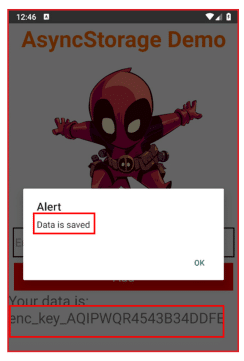
1. Install the vulnerable app on the emulator/physical device and ensure data is stored in AsyncStorage.
2. Run the following command to run the ADB daemon as root:
adb root
3. Access the shell of the device via adb shell
4. Navigate to the databases folder of the application
cd /data/data/<com.your.package>/databases</com.your.package>
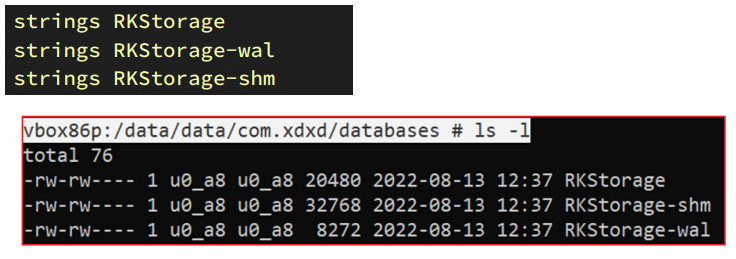
5. You will find 3 files in this folder. You can check the contents of each file with
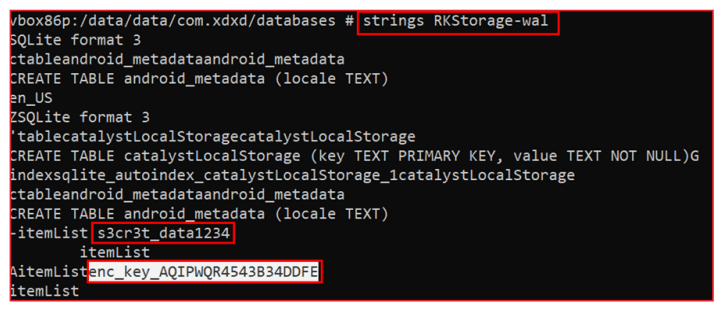
6. You will be able to see data stored in AsyncStorage in cleartext.
Sensitive information in XML files
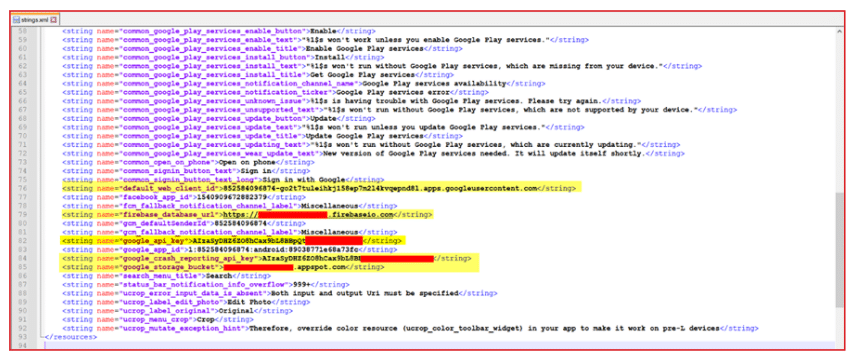
In Android applications, XML files play important roles in defining layouts of components, storing recurring strings, providing IDs to the assets, etc. Developers sometimes store sensitive information in plaintext in these XML files. We can review these XML files to find the application’s hardcoded secrets.
Strings.xml
While looking for sensitive information in XML files, the “Strings.xml” should be the first place to look. For convenience, developers might include frequently needed sensitive information such as credentials, static tokens, passwords, secrets, and hidden URLs in the Strings.xml file, which can later be referenced within the application. This file can be located in the”/res/values/” folder of the decompiled application.
AndroidManifest.xml
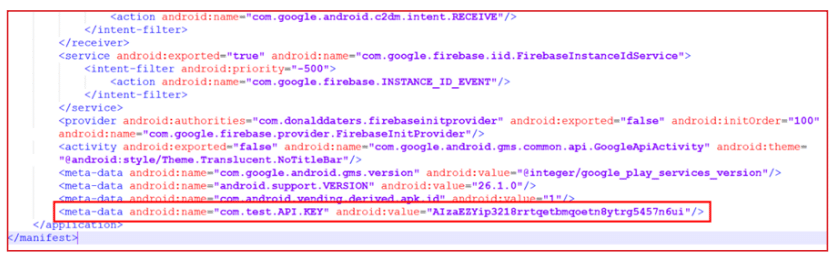
The “AndroidManifest.xml” file contains information on the application package, including application components such as activities, broadcast receivers, services, content providers, etc. This file may contain sensitive hardcoded strings such as keys, secrets, tokens, etc.
Uncovering unencrypted HTTP data in the cache
Why is there HTTP data in the cache folder?
Android applications can keep all kinds of stuff in the package cache folder, which helps boost the app’s performance. However, sometimes, the application may save sensitive information in the cache folder due to misconfiguration, more specifically, in the “HTTP” folder.
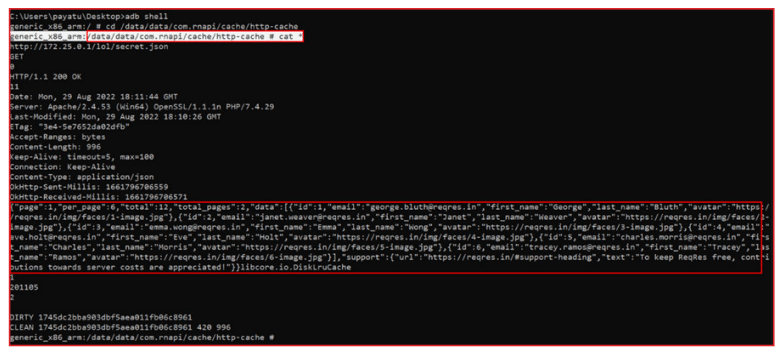
In the React Native applications, “http-cache” contains the GET-based HTTP request+response data. This may expose sensitive data if it is being transferred over an unencrypted or insecure channel.
Limitations of data in the http-cache folder:
1. Only “GET” based HTTP request+response data is stored in the cache folder of the application. Post-request data is not cached in the cache folder.
2. Only unencrypted (non-https) requests are cached in plaintext. If the URL has an SSL certificate implemented, then the data will be cached in an encrypted format.
Exploit scenario of http-cache folder:
1. Any GET HTTP request is saved in this folder. If the application sends sensitive data, such as OAuth tokens, credentials, etc., over the GET request type, then we can grab that data in plaintext.
2. Both request and response headers and their values are cached in plaintext. Thus, we can grab that data if the application sends any sensitive information in the request/response headers of a GET request.
How to test it?
1. Open the vulnerable application with the feature to transfer data in HTTP requests and issue some HTTP requests.
2. Open a command prompt and start the ADB server as root with the following command: adb root
3. Now access the shell of the device with adb shell and navigate to the following directory
/data/data/<com.package.name>/cache/http-cache</com.package.name>
4. Open all files in this folder with cat *, and you can now scrap through cached data
Maintaining the security of application code is essential for protecting sensitive information. React Native apps, with their bundled JavaScript code, present unique challenges, but these can be mitigated through careful development practices. By proactively securing sensitive data, developers can significantly reduce the exposure risk and ensure their applications’ integrity.
The upcoming blog of the React Native Pentesting for Android Security Masterclass has some really exciting stuff in store. In it, we will learn how to edit and patch React Native applications.
References:


Talk to a security researcher
This is the default text value


