
Editing and Patching React Native Applications


.svg)
In the previous blog of the React Native Pentesting for Android Security Masterclass, we covered methods for decompiling APK files and analyzing their structure.
Let’s now move to editing and patching React Native apps.
Modifying and patching React Native applications is relatively easier than doing so with Java-native Android applications. As we already learned, when an APK of a React Native project is built, all of the React Native JavaScript code gets compiled into one single file, i.e., “index.android.bundle.”
We have to find the correct piece of code in the “index.android.bundle” file, and then we can modify the code right away. We can find the code block by searching for the specific keywords in the application. For example, we can search for text (like the text on the button, touchable opacity, etc.) shown in the application’s UI to find specific functions associated with that text.
We can utilize the react-native-decompiler module to analyze the code more efficiently and later modify it by referencing it as “index.android.bundle.”
Steps:
There are several ways to edit and patch the React Native Android application. Below are the two most effective methods demonstrated. You can choose any method at your convenience.
Method 1: Modification using any simple compression tool
1. Open the installed application, and you will notice that the counter only increases by 5 digits.
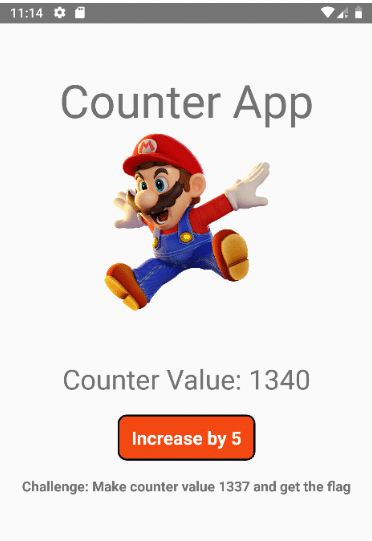
2. Change the extension of the vulnerable APK to “.zip”
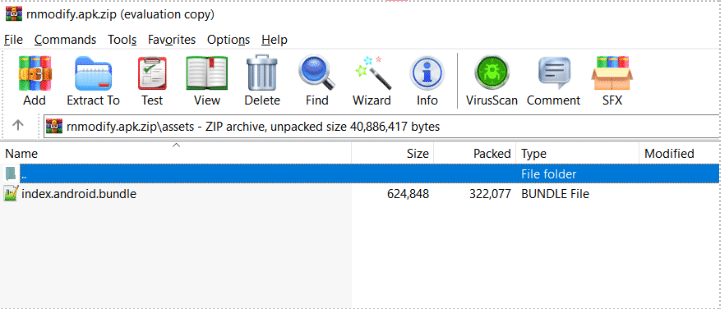
3. Open the zip file in Winzip and open /assets/index.android.bundle. Note that you have to open the zip file in WinZip. Extracting and compressing the zip again might give an error.
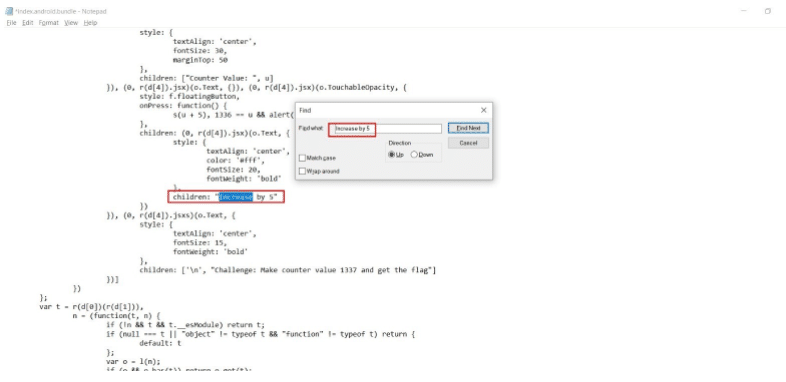
4. In the “index.android.bundle” file, all of the compiled code of the React Native application exists. You can beautify the code with any online JS beautifier tool such as “codebeautify.org”
5. As per our challenge, we have to change the counter value to 1337. Thus, we will change the increment value from 5 to 1 so the counter will increase only by 1 digit per button click.
Tip: You can search in code with custom keywords that you see in the application. Usually, the “hand-written” code can be found at the bottom of this file.
6. Now, we have to delete previous signing certificates. Go to the “META-INF” file and delete the following files:
- CERT.RSA
- CERT.SF
- MANIFEST.MF
7. Exit the “Winzip” app and rename the file extension back to “.apk”
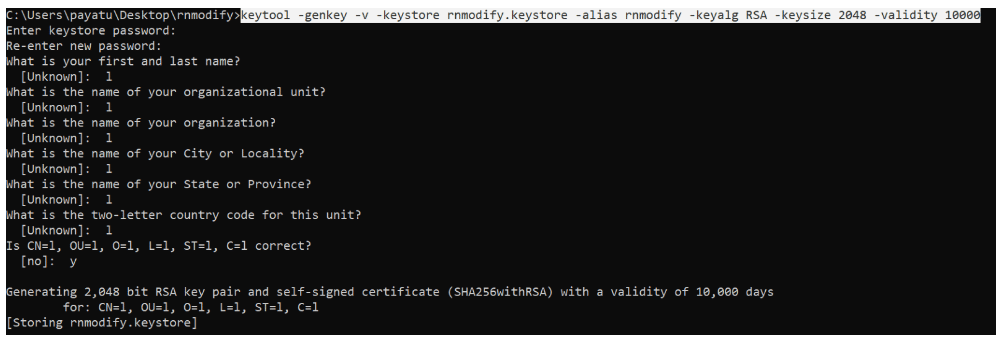
8. Now, we need to sign the modified APK with a new certificate. To generate a custom certificate, run the following command and fill out the details:

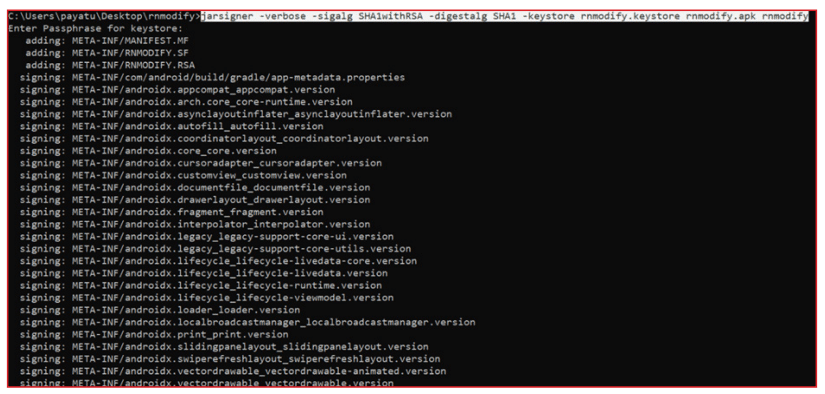
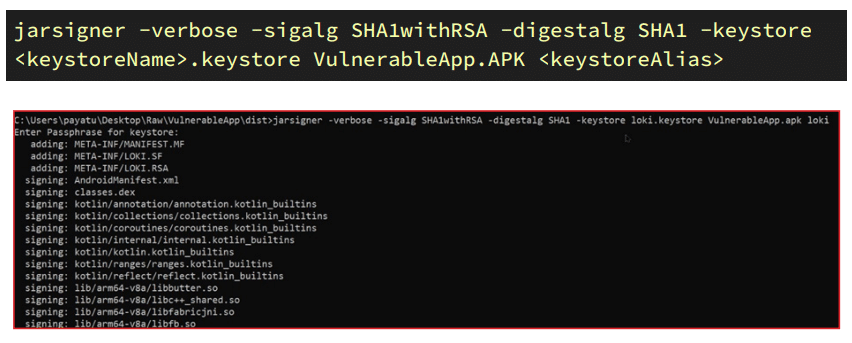
9. We will sign our APK with the generated keystore. Run the following command and enter the keystore password set while creating the keystore in step 6.

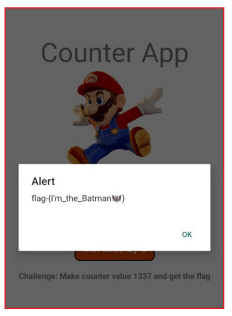
10. Install the modified APK with adb.


11. The modified application will be successfully installed.
Method 2: Modification using APKTool
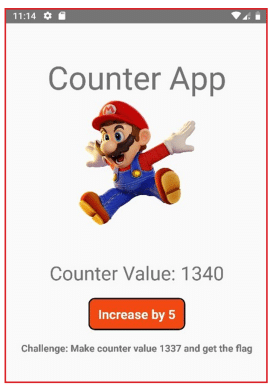
1. Open the installed application, and you will notice that the counter only increases by 5 digits.
2. Run the following command to decompile the application with APKTool: apktool d VulnerableApp.apk
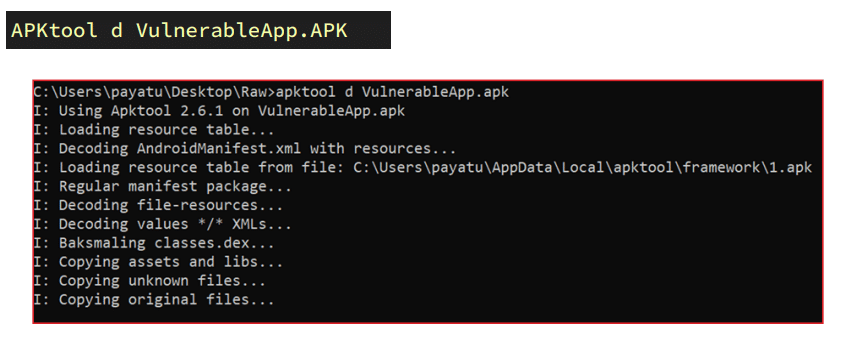
3. Goto “/VulnerableApp/assets” folder and open the “index.android.bundle” file
4. Search for keywords such as “Increase by 5” and then for the “onPress” function. You can copy the entire code and beatify it for convenience.
Tip: You can search in code with custom keywords that you see in the application. Usually, the “hand-written” code can be found at the bottom of this file.
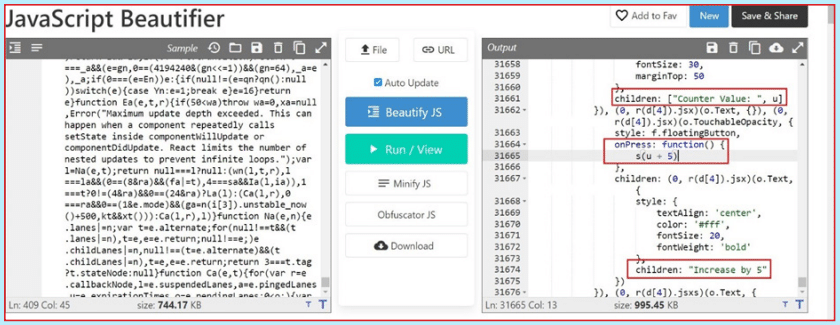
5. Change the counter value from “5” to “1” in the “index.android.bundle” file.
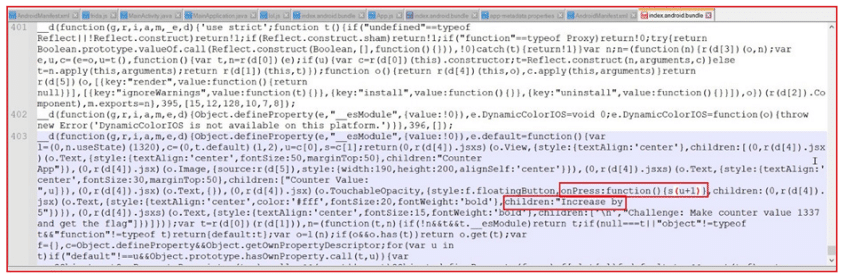
6. Save this file and run the following APKTool command: apktool b VulnerableApp
7. Modified APK will be generated in the “/VulnerableApp/dist” folder.
8. Goto this folder and create a keystore with the following command:

9. Sign the APK with “jarsigner”.
10. Install the signed application with:
adb install VulnerableApp.apk
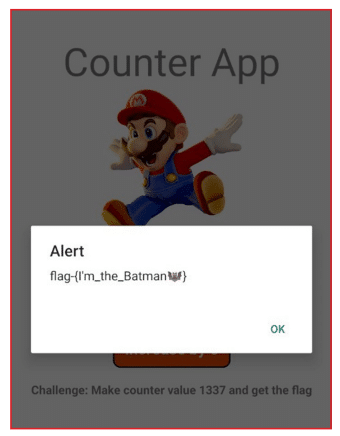
11. Open the application, and you can increase the counter by 1 digit now.
Note: You can use the abovementioned method to modify and patch the React Native application.
Conclusion
We now know what React Native is, what the bridge concept is, how to find out if an application is built on React Native, how to reverse engineer it, attack surfaces static analysis, and how to edit and patch React Native applications.
In the next blog, we will learn how to modify Hermes bytecode.
Till then, stay tuned!


Talk to a security researcher
This is the default text value


