
IoT Security: Bluetooth Low Energy

.svg)
If you haven’t read through Part 1 to Part 3 of our IoT Security Blog series I would urge you to go through them first unless you are already familiar with the basics of IoT. Link to the previous blog – IoT security – Part 3
Bluetooth has been a buzz-word as people wanted all their devices to be smart and which basically implies that you get to control things across the devices and not needing to carry wire around. Bluetooth has been in the market for more than a decade. If you’re a millennial, you would have used those classic fancy Nokia phone which has Bluetooth in it. Bluetooth was invented by Ericsson and other vendors have started using Bluetooth. Soon after that, all the major vendors created a consortium called as Bluetooth Special Interest Group – SIG which governs how the standard should be and the interoperability between different versions.
We are not going to talk about Bluetooth. Bluetooth by itself is a massive stack and their specification is around 2000+ pages. In this blog, I will be covering only the Bluetooth Low Energy more famously known as BLE.
With the advent of connecting all the things to the internet, there comes the problem of power and resource. As I mentioned early, Bluetooth is a huge stack. Implementing it in an end device like a fitness band would take more power and resource. So in the Bluetooth 4.0 standard, they introduced something called Low energy which is specially targeted for IoT and smart devices which runs on memory and power constrained devices.

Bluetooth SIG started selling the standard as Bluetooth Smart. Which has two components, Bluetooth smart devices are end devices which have only the Bluetooth Low Energy component and Bluetooth smart Ready are the device which is capable of doing both the Bluetooth LE and the EDR-Bluetooth classic component which could be your central device, ie, mobile phone or laptop.
Now let’s look into the technical details of the Bluetooth specification
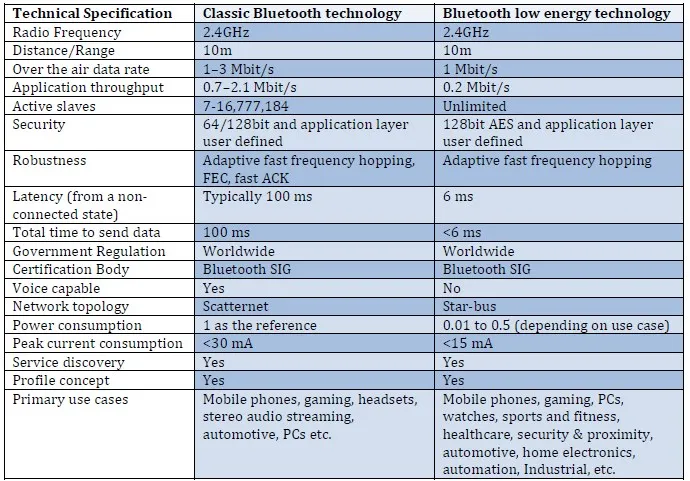
The table itself will give you a better insight into the specification, range and bandwidth has been reduced to withstand the low power and low resource.
As I mentioned earlier, LE has two different types of devices.
Bluetooth Smart Ready – Which are the central device which is battery powered and high resource which is capable of running all the Bluetooth protocols. They are your laptops and a mobile phone.

Bluetooth Smart – They are your end devices like fitness tracker or baggage tracker or a smart dildo. They don’t have to run an entire stack and they need to conserve power and resource. They run only the Bluetooth LE server. They are the peripheral device that the central device can connect to.

Bluetooth and LE stack details are out of the scope of this document.
But the two important components we will focus on are GAT and GAPP which are responsible for the operation of the BLE service.
Generic Access Profile (GAP)
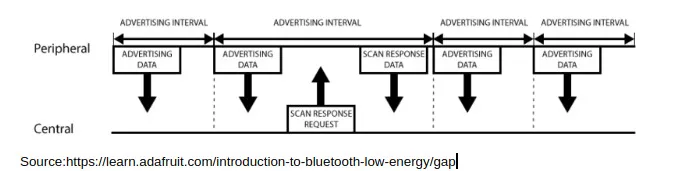
GAP defines how your communication and connection to the central and peripheral should work.
Generic Attribute (GATT)
GATT is like a server which manages how your data needs to be treated.
Your Bluetooth LE devices work as a server-client principle. Here your end device/peripheral device acts as the server which runs the GATT server and your central device, acts as the client. So your end app or the tool connects to the GATT server and requests data from the device.
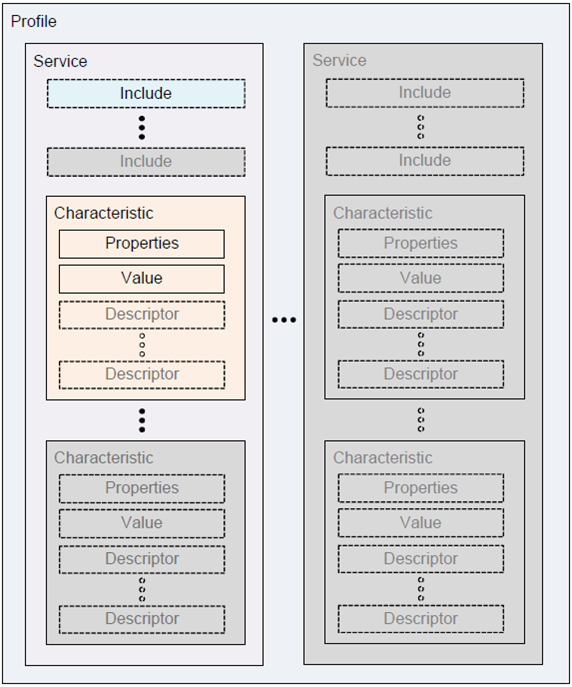
Inside your GATT server. There are three components.
- Profile – Which is defined by the Bluetooth SIG, it could be based on the type of the device, be it a blood pressure device or temperature sensor or any most commonly used device which has an advantage of interoperability.
- Services – Each device has multiple parameters inside it. Let’s say a device could have a name, firmware version, OTA functionality, device operation. They are grouped into their specific datasets called as service.
- Characteristics – inside your service is where your data is placed. It could be a 16 bit Bluetooth SIG derived characteristic or a vendor-specific 128-bit characteristic.
In short, service is like a folder and characteristics are the files which holds the data.
Now that we understood the basics of what is Bluetooth LE and how it functions. Let’s go into some tools and methods on how to access the BLE devices.
If you are using windows, I would seriously suggest you use Ubuntu as it comes with all the necessary tools to access ble devices and get those cheap Bluetooth 4.0 dongles from Amazon. (some laptops don’t come with it. )
Connecting your Bluetooth dongle:
- Connect the Bluetooth USB Dongle to the free USB port of your laptop. (No need to install any driver from your host machine).
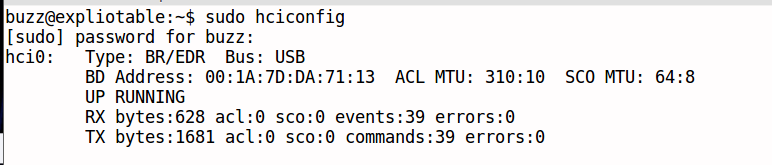
- Once Connected, open your terminal and type “sudo hciconfig“ You should be able to see this window which gives you the mac address(The USB dongle) and it should say UP and RUNNING.
- If you encounter any issue restart the Bluetooth interface by “sudo hciconfig hci0 reset” → This will be handy a lot of time.
Scanning for Bluetooth devices
1. Once you have successfully connected your Bluetooth dongle to your machine
2. You can now scan for all the ble devices around you using “sudo hcitool lescan”
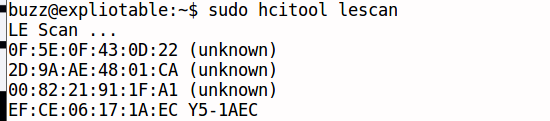
3. You will see a list of devices with their name and MAC address.
4. Figure out the mac of your device by turning it off and on and finding the difference.
5. Now to get more information about the device. Do a “sudo hcitool leinfo –random <mac>” –random depends on the type addressing.

6. You will get basic information like the manufacturer of radio.
Reading and writing data
1. Once you got the MAC address of your device. Save it in a file. It will be useful.
2. To connect to a smart device’s GATT server. We use a tool called as gatttool.
3. Using this command “ sudo gatttool -I -b <mac> -t random” you will get a CLI like this and type “ connect” to it.

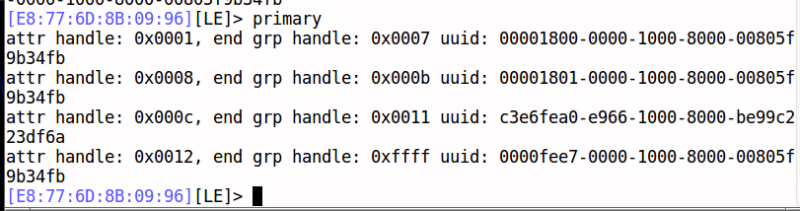
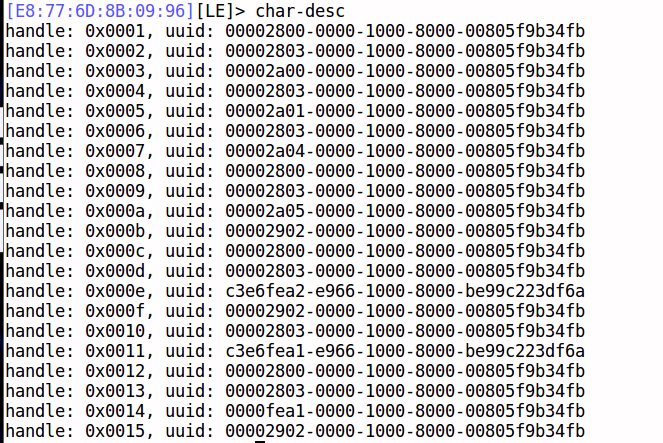
4. Now you can see the characteristics and services running on the device by using “primary” , “characteristics” and “char-desc” to see all the UUIDs running in the device
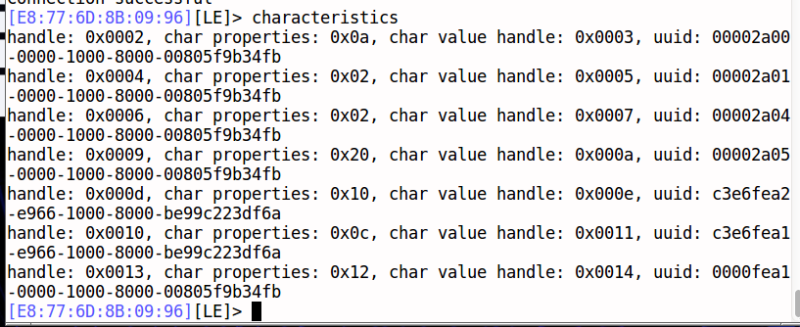
5. Now you can read and write to these handles using “ char-read-hnd <handle>” and “ char-write-req <handle> <data> “ to read and write to it.
![Terminal window showing a Bluetooth device interaction where a characteristic value 0x11 AABB was written successfully and prompts appear with device address [E8:77:6D:8B:09:96] and [LE]>.](https://cdn.prod.website-files.com/6a423439b76720f6066a6845/6aba0cc929d6018592282902_4150880507-13.webp)
![Screenshot of a command prompt window showing a Bluetooth device address [E8:77:6D:8B:09:96] and a command 'char-read-hnd 0x0003' with the response 'Characteristic value/descriptor: 46 34'.](https://cdn.prod.website-files.com/6a423439b76720f6066a6845/6aba0ce5b4ebeb080b9cc365_Selection_278-13-1.webp)
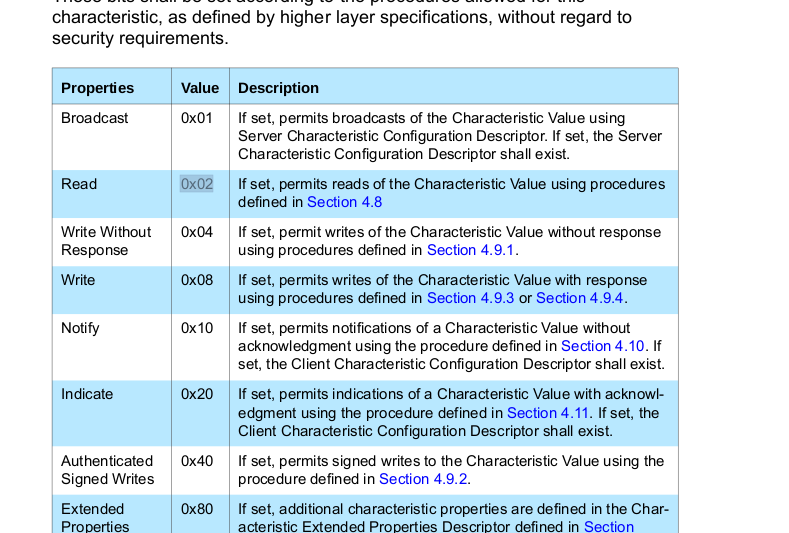
6. Here the char properties give you the permission of the handle like Read, Write, Notify, Indicate.
7. You can enable notification by writing “01” to the handle too

You can check our other blogs on how to reverse a Bluetooth communication of a smart massager.
Continue to the next part – IoT Security – Part 5 (ZigBee Protocol – 101)
Reference:
- https://www.nordicsemi.com/eng/News/ULP-Wireless-Update/A-short-history-of-Bluetooth
- https://www.bluetooth.com/specifications/gatt/generic-attributes-overview
- https://www.bluetooth.com/specifications
- https://learn.adafruit.com/introduction-to-bluetooth-low-energy/gatt
- https://www.oreilly.com/library/view/getting-started-with/9781491900550/ch01.html
- https://en.wikipedia.org/wiki/Bluetooth_Low_Energy
- https://www.jaredwolff.com/blog/get-started-with-bluetooth-low-energy/
- http://object-network.blogspot.com/2014/01/scanning-ble-adverts-from-linux.html
- https://elinux.org/images/3/32/Doing_Bluetooth_Low_Energy_on_Linux.pdf
- https://www.digikey.com/Web%20Export/Supplier%20Content/Laird_776/PDF/laird-wireless-bluetooth-smart-ready.pdf


Talk to a security researcher
This is the default text value


